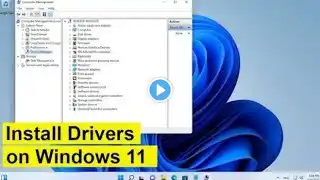
Must-Install Drivers After Installing Windows 11 | Graphics, Chipset, Wi-Fi & more Drivers Explained
Did you just install Windows 11 on your new or old PC and don’t know what to do next? In this detailed step-by-step tutorial, I’ll show you which essential drivers to install after installing Windows 11, why they’re important, and how you can easily update or reinstall them using official tools. This video is a complete Windows 11 driver installation and update guide for 2025, suitable for desktop PCs, laptops, and custom-built systems. Whether you’re using Intel, AMD, or NVIDIA, this guide will help you make your system stable, fast, and reliable. 💻 What You’ll Learn in This Video 🔹 What drivers are required after a fresh Windows 11 installation. 🔹 Difference between chipset, graphics, audio, Wi-Fi, Bluetooth, and LAN drivers. 🔹 Why Windows Update alone is not enough for full performance. 🔹 Step-by-step process to install chipset drivers (Intel & AMD). 🔹 How to install graphics drivers (NVIDIA GeForce, AMD Radeon, Intel Arc). 🔹 How to install Wi-Fi and Bluetooth drivers using official manufacturer tools. 🔹 How to install Realtek Audio drivers for clear sound and microphone support 🔹 Best free and safe driver update software for 2025. ⚙️ Why Drivers Are Important Drivers act as the bridge between your hardware and Windows 11. Without proper drivers, your PC may experience: ❌ Poor graphics quality or screen flicker ❌ No Wi-Fi or Bluetooth connection ❌ No sound from speakers or mic not working ❌ Low gaming performance ❌ System lag, crashes, or overheating Installing the right drivers ensures that your CPU, GPU, RAM, storage, and all devices work in harmony with Windows 11 for maximum speed and stability. 🕒 Timestamps 00:00 - Intro 00:13- AMD Graphics driver 01:13 - Nvidia Graphics driver 03:20 - Install AMD Graphics driver 04:29 - Chipset driver download 05:08 - Chipset driver installation 05:54 - Motherboard Support 06:34 - Motherboard Drivers 07:18 - MSI Center 07:30 - Drivers installation method 1 08:10 - Method 2 - Drivers installation 09:49 - Simple future updates 10:42 - Windows 11 update 10:58 - The end... 🧠 Understanding Each Driver Type Chipset Driver: Handles motherboard communication, PCIe, USB, and CPU coordination. Always install this first! Graphics Driver (GPU): Controls your display, gaming, video rendering, and overall graphical performance. Audio Driver: Enables sound output and microphone input (Realtek or manufacturer-specific). Wi-Fi/Bluetooth Driver: Required for wireless internet and Bluetooth device connection. LAN/Ethernet Driver: Needed if you use a wired internet connection. Storage/SATA/RAID Driver: Improves SSD/HDD read-write speed and system responsiveness. 🔧 How to Install Drivers Safely (2025 Guide) 🧩 Chipset Driver: • AMD users → download from AMD’s official site • Intel users → use Intel Driver & Support Assistant • Always reboot after installation. 🎮 Graphics Driver: • NVIDIA users → install GeForce Experience • AMD users → use Adrenalin Edition software • Intel users → use Intel Arc Control 🌐 Wi-Fi / Bluetooth / LAN: • Download from your motherboard or laptop manufacturer (e.g., ASUS, MSI, Dell, HP). 🔊 Audio Driver: • Realtek → install latest from manufacturer website. 💡 Pro Tips for Beginners Always install chipset drivers first before graphics or other device drivers. Restart your PC after every major driver installation. Never trust unknown third-party driver websites. Run Windows Update after manual installations for extra patches. Keep drivers updated once a month for smooth performance. ⚡ Common Questions Answered Q: Can I skip chipset or audio drivers if Windows 11 detects them automatically? ➡ Not recommended. Automatic drivers are generic and may limit performance. Q: What happens if I install the wrong driver? ➡ Your device may stop working or cause blue-screen errors. Uninstall and reinstall the correct version. Q: How can I safely update all drivers at once? ➡ Use official apps like AMD Auto-Detect, Intel DSA, or GeForce Experience — never use unverified software. Q: What about RAID or storage drivers? ➡ Optional unless you use multiple drives or NVMe RAID mode. 🧑💻 Ideal for: New PC or laptop users Gamers and creators Anyone reinstalling Windows 11 Users fixing “no Wi-Fi / no sound” issues 📅 Updated for 2025 This guide is based on the latest Windows 11 23H2 update and supports: Windows 11 Home / Pro / Enterprise (64-bit) 🎯 Conclusion After installing Windows 11, don’t ignore drivers — they’re the backbone of your PC’s performance. With correct drivers, your system becomes faster, smoother, more stable, and gaming-ready. Follow this video carefully, and you’ll know exactly which drivers to install, when, and how without confusion. 🔖 Hashtags #Windows11Setup #Windows11Drivers #ChipsetDriver #GraphicsDriver #WiFiDriver #BluetoothDriver #AudioDriver #AMD #Windows11Tutorial #DriverInstallation #TechGuide #Windows11Tips #Windows11Performance #Windows11Update #DriverUpdater #TechTutorial #WindowsTips