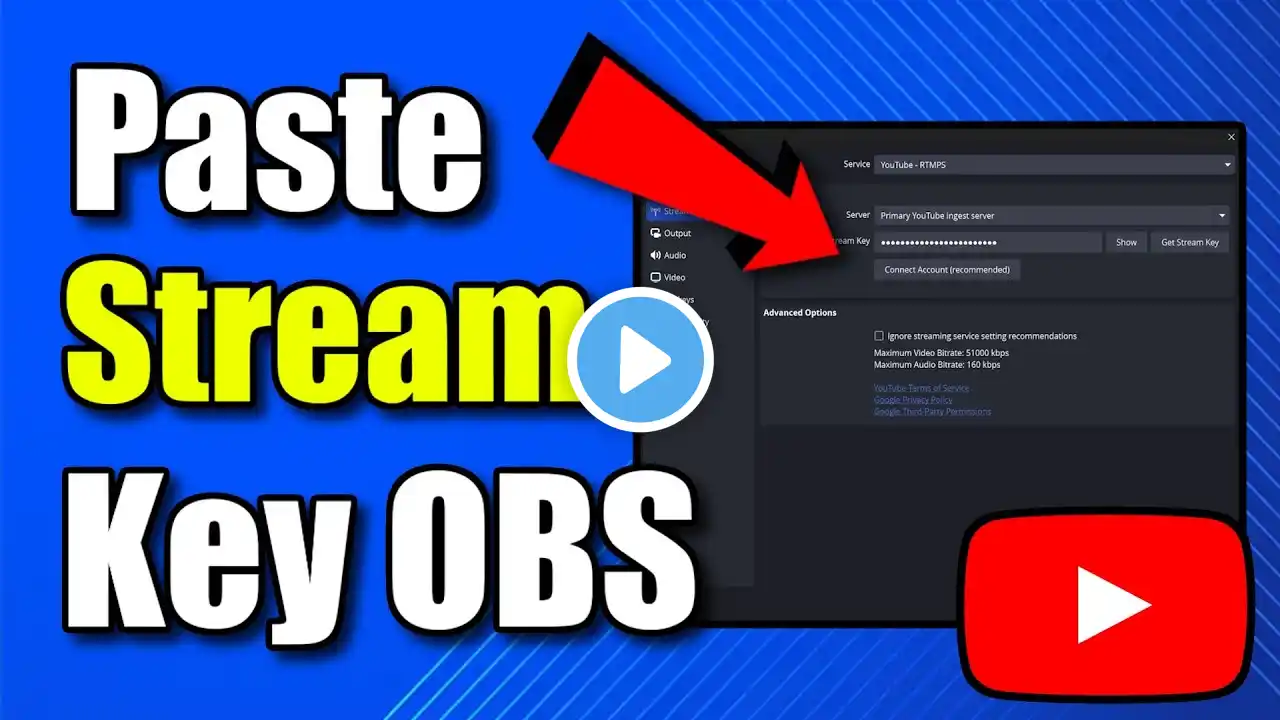
How to Add Youtube Stream Key to Streamlabs OBS (Easy Tutorial)
Adding your YouTube stream key to Streamlabs OBS (SLOBS) is essential for a seamless streaming experience. Here’s how you can do it: Log in to your YouTube account: Go to YouTube and sign in with your Google account. Access your stream key: Click on your profile picture in the upper-right corner. Select YouTube Studio. In the left menu, click Settings, then choose Channel and Videos. Click Stream to find your stream key. Open Streamlabs OBS: Launch Streamlabs OBS on your computer. Navigate to Settings: Click on the Settings (gear) icon at the bottom-left corner of the Streamlabs Studio homepage. Configure stream type: Under the Stream section, choose the appropriate stream type: Custom streaming server: If you’re using a custom server, select this option and enter your custom server URL and stream key. Streaming services: For popular platforms like Twitch, YouTube, Facebook, etc., select this option. Add your stream key: If you’re streaming to Twitch: Under Service, select Twitch. Choose the server (we recommend Auto). Paste your copied stream key into the Stream key field. If you’re streaming to YouTube: Under Service, select Youtube – RTMPS. Choose the server (we recommend Primary Youtube Ingest Server). Paste your YouTube stream key into the Stream key field. Apply the changes: Click Done to save your settings. ... Twitter: https://twitter.com/YourSixStudios?la... Twitch: / yoursixstudios Discord: / discord Instagram: / yoursixstudios - ((( Subscribe to my LIVE STREAMING ))) ((( Gaming Channel "YourSixGaming" ))) / @yoursixgaming ... ((( Subscribe to my ADVENTURE CHANNEL ))) ((( Travel, Cameras & More "YourSixAdventures))) / @yoursixadventures