How to Uninstall WhatsApp in Windows 10 PC or Laptop
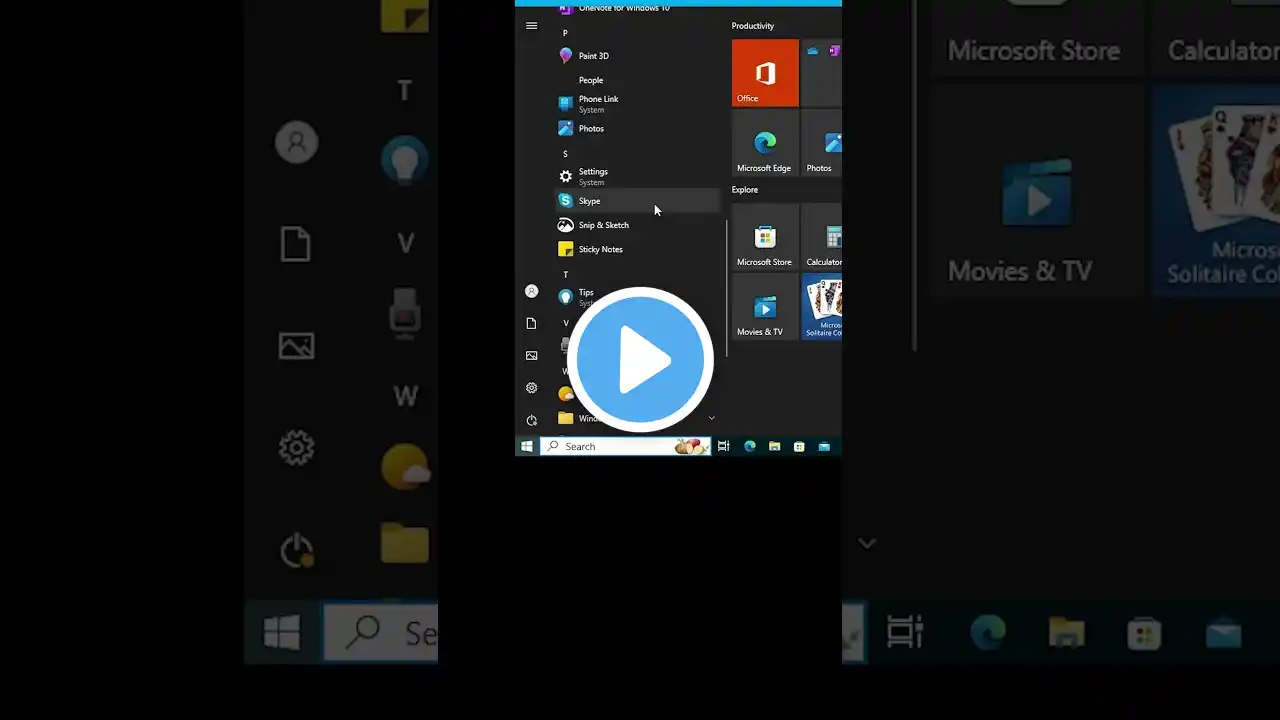
🚨 Want to uninstall WhatsApp from your Windows 10 PC or laptop? This step-by-step tutorial shows you how to completely remove WhatsApp using Windows 10’s built-in Settings—no third-party software required! Perfect for beginners and advanced users looking to manage apps or free up disk space. Follow this quick guide to uninstall WhatsApp in minutes! 💻 🔍 What You'll Learn: How to uninstall WhatsApp from Windows 10 without extra tools Navigate the Settings menu to manage apps in Windows 10 Safely remove WhatsApp and clear residual data Tips to troubleshoot app uninstallation issues 🛠️ Steps to Uninstall WhatsApp in Windows 10: 1 Open Settings: Click Start → Type "Settings" → Select Settings. 2 Go to Apps: Navigate to Apps → Apps & Features. 3 Find WhatsApp: Scroll through the apps list or use the search bar to locate WhatsApp. 4 Uninstall WhatsApp: Click the three-dot menu next to WhatsApp → Select Uninstall → Confirm the uninstallation. 5 Check for Residual Files: Optionally, go to C:\Users\YourUsername\AppData\Local\WhatsApp and delete any leftover files to free up space. ⚠️ Note: Back up important WhatsApp chats or data (e.g., via WhatsApp’s backup feature to your linked phone) before uninstalling, as this process will delete all local app data. Ensure you have administrative privileges to uninstall apps. 🌟 Why Watch? This quick guide makes uninstalling WhatsApp on Windows 10 simple and fast, helping you free up space or resolve app issues effortlessly! 👍 Like, Subscribe, and Hit the Bell Icon 🔔 for more Windows 10 tutorials, tech tips, and troubleshooting guides! Share this video with friends who need help removing WhatsApp. 💬 Have questions? Drop them in the comments below, and we’ll respond quickly! Let us know if you’re facing any app uninstallation issues. #Windows10 #UninstallWhatsApp #AppManagement #Windows10Tutorial #TechTips #NoSoftware #WhatsAppUninstall #FreeUpSpace #WindowsTroubleshooting