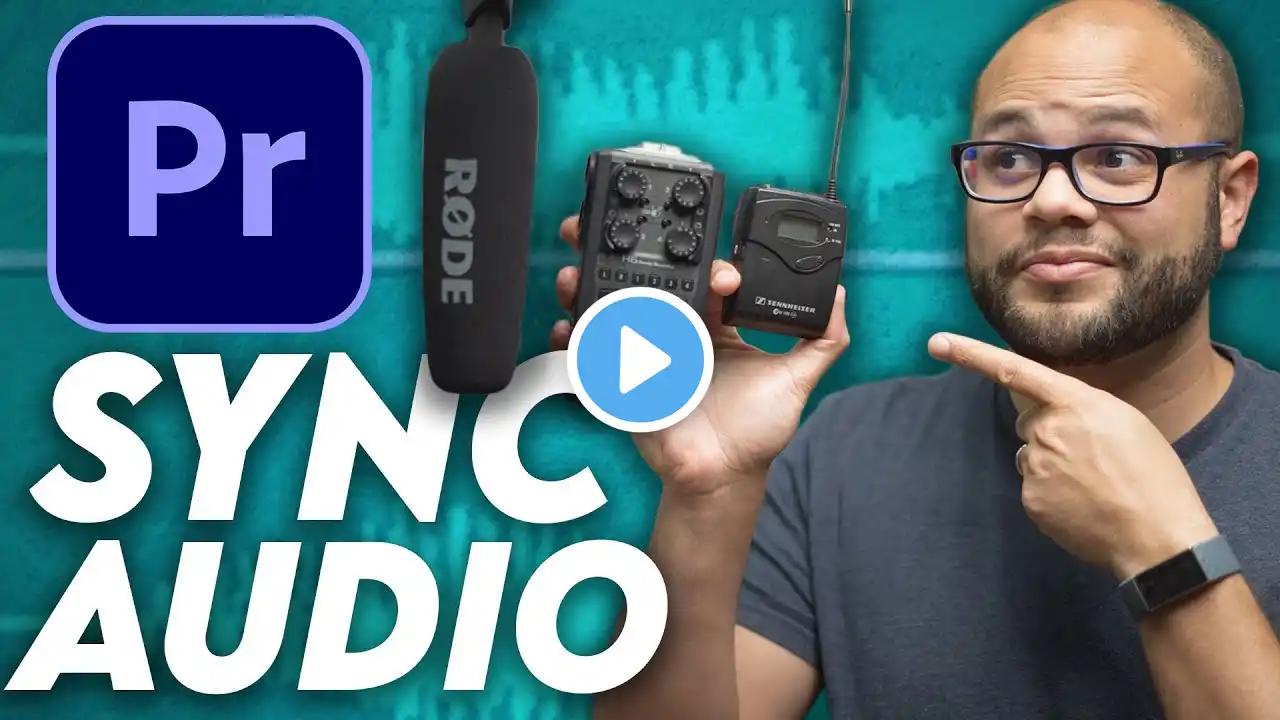
Switching to Audio Time Units in Adobe Premiere Pro
It is often necessary to shift audio files in the Adobe Audition timeline in fractions of a second smaller than the frame rate. If you're having difficulty with granular movement of your audio files, it is probably due to the fact that your timeline is not set to show audio time units. Switching to audio time units not only allows you to zoom into your audio files to take a more in-depth look at the wave form, it also allows you to move your files in increments smaller than your frame rate. This Adobe Premiere Pro quick tip is just that, a quick tip. If you have any questions about the process or rationale I used to {tipDesc}, feel free to let us know in the comments. Also, if this tip is lacking in detail or you find it needs to be expanded, let us know. If I see enough interest, I will definitely consider expanding this tip into a full-blown tutorial. If automated sound-syncing isn't cutting it for your edit, switching to audio time units is absolutely necessary for syncing your on-set audio with your video. Couple the ability to zoom in further to your on-camera audio's wave form with the ability to move your audio at increments in the thousands of seconds, you'll be able to have perfectly synced audio for your next video project. Thanks for your interest in our Adobe Premiere Pro lesson! Premiere Pro is a powerhouse application that can be used from the smallest project to the biggest feature film. Because of this, there is always more to learn about the software. If this video has piqued your interest and you are hungry for more content along these lines, let us know in the comments! #premiere #adobePremierePro #education #editing #adobe #premiereTips #premiereTutorial #adobeCC #audioInVideo #editing #editingTips 0:00 Moving Clips in Frame vs. Sample Rates 0:49 Syncing Issues with Frame Rates 1:43 Showing Audio Tiime Units 2:04 Syncing with Audio Time Units 2:26 Audio Time Units and Dragging Video