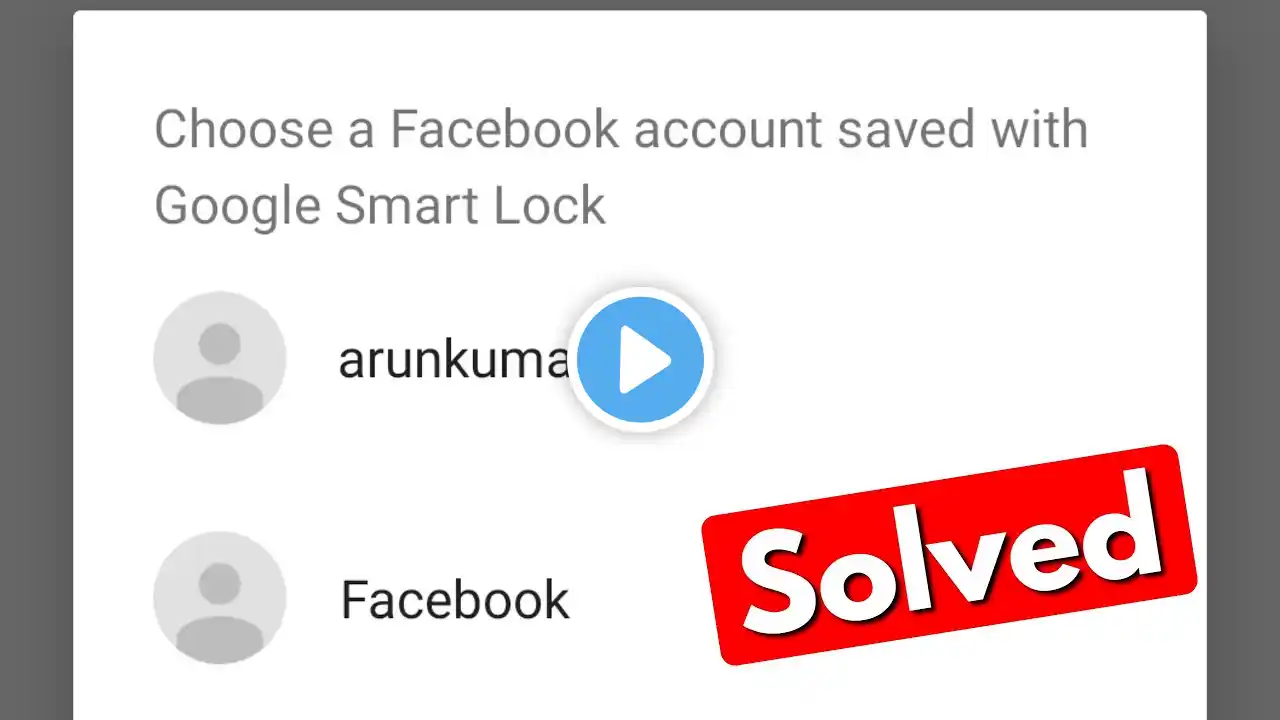
How to Delete Facebook Account Saved With Google Smart Lock
In this video, learn how to delete your Facebook account saved with Google Smart Lock. If you no longer want Google to autofill your Facebook login information, we’ll guide you through the steps to remove your saved credentials quickly and easily. Whether you're using Google Chrome or the Google app, follow along as we show you how to access your Google Password Manager, locate your Facebook login, and delete it. Don’t forget to like and subscribe for more helpful tech tips! Hashtags #DeleteFacebookAccount #GoogleSmartLock #TechTips #Facebook #Google #PasswordManager #DeleteAccount #PrivacySettings #GoogleChrome #SocialMedia #RHS #Tutorial Video Tags delete Facebook account, delete saved Google Smart Lock, how to delete Facebook from Google, Google Smart Lock Facebook login, remove Facebook password, Facebook login autofill, Google Password Manager, delete password in Chrome, manage Google passwords, delete Google account, Facebook account security, delete login info, tech tips, privacy settings, Google Chrome tutorial, Facebook help, social media management, password management Chapters 00:00 - Introduction Learn how to delete a Facebook account saved with Google Smart Lock. 00:10 - Access Google Chrome Open Google Chrome or the Google app to start. 00:20 - Open Settings Tap the three dots in the top right corner and select "Settings." 00:30 - Google Password Manager Tap "Google Password Manager" to manage your saved passwords. 00:40 - Locate Facebook Login Scroll down to find your Facebook login information. 00:50 - Enter Screen Lock Enter your screen lock to access saved passwords. 01:00 - Delete Facebook Password Choose the Facebook password you want to delete. 01:10 - Confirm Deletion Tap the "Delete" button to remove the saved login info. 01:20 - Conclusion You have successfully deleted the Facebook account saved with Google Smart Lock. Like and subscribe