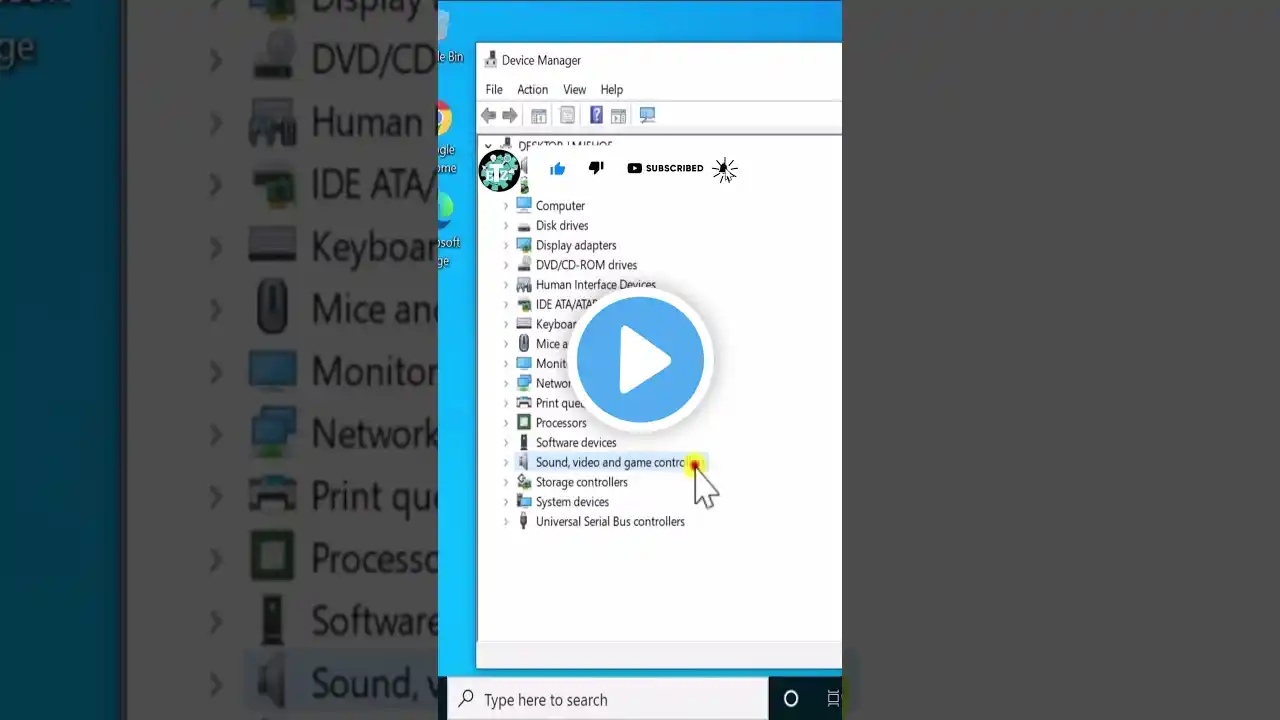
How To Fix Headset Mic Not working On Windows 10 11
How To Fix Headset Mic Not working On Windows 10 11 Fixing a headset mic not working on Windows 10/11 involves several key steps. First, ensure the headset is securely plugged into the correct audio jack (often pink for mic, or a combined 4-pole jack) or a different USB port. Next, navigate to Windows Sound Settings (right-click speaker icon -- Sound Settings -- Input). Confirm your headset mic is selected as the default input device, its volume isn't muted or too low, and it's not disabled in "Device properties." Crucially, check Privacy Settings: go to "Settings -- Privacy -- Microphone" (or "Privacy & security" on Win 11) and ensure "Allow apps to access your microphone" is enabled for both Windows and specific applications. Outdated or corrupt drivers are frequent causes; in Device Manager, find your mic under "Audio inputs and outputs," then right-click to "Update driver" or "Uninstall device" and restart your PC. Finally, run the Windows built-in "Recording Audio" troubleshooter. Always test your microphone after each adjustment. Watch video:- • How To Fix Headset Mic Not working On Wind... If you have any question, please comment below. Subscribe and support:- / @quickfaq