How To Turn Off Story Notifications On Instagram
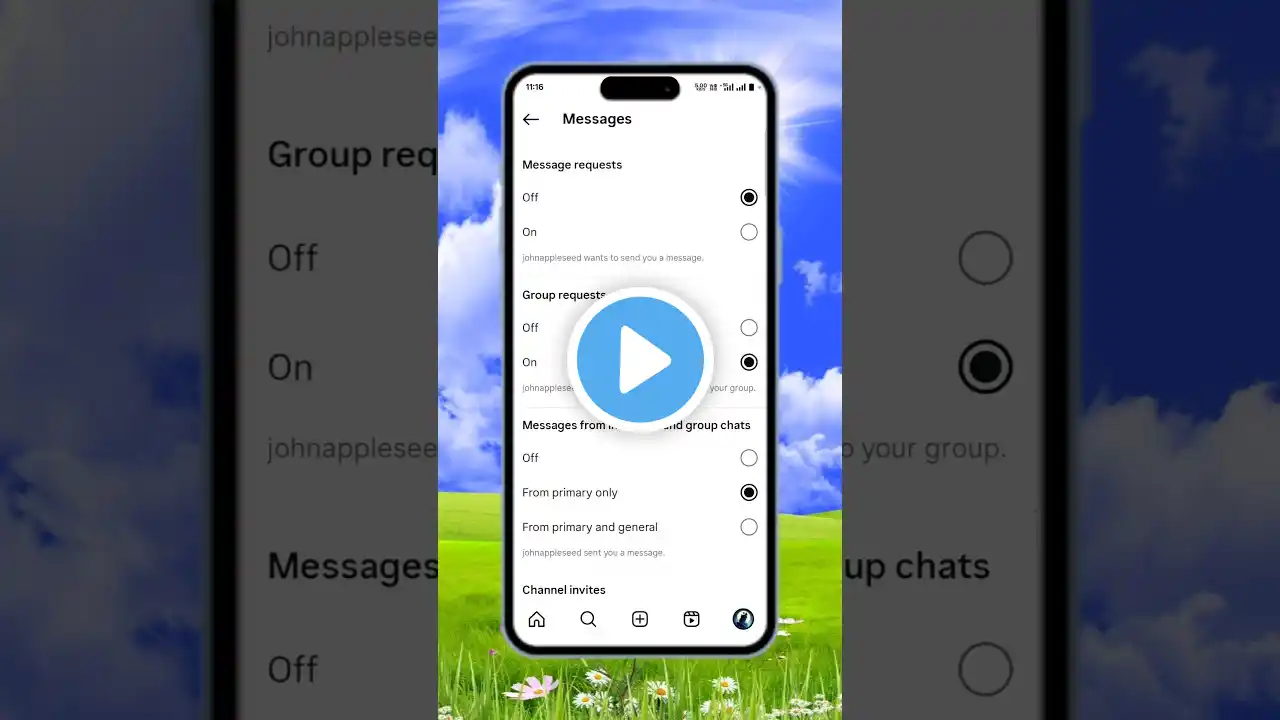
Turning off story notifications on Instagram can help reduce distractions and prevent unwanted alerts from specific users or all accounts. In this tutorial, you’ll learn how to disable story notifications directly from the Instagram app, as well as through your device settings if needed. Start by ensuring your Instagram app is updated to the latest version. Open the app and log in to your account. From the home screen, tap the profile icon at the bottom right corner. Once on your profile page, tap the three horizontal lines (menu icon) in the top right corner to access settings. Select “Notifications” from the menu, then choose “Posts, Stories and Comments.” On the next screen, look for the “Stories” section. Here, you’ll see options to customize when you get notified about story updates from people you follow. To completely turn off story notifications, select “Off.” This will stop Instagram from sending you alerts whenever someone posts a new story. If turning off story notifications from within the app doesn’t work—or if you want a more general control—you can manage app notifications through your device settings. On Android, long-press the Instagram app icon and tap “App Info.” Then go to “Notifications” and either turn off all notifications or selectively disable story-related ones. On iPhone, go to Settings Notifications Instagram, and adjust the alert preferences from there. These changes will help you maintain better control over your Instagram experience, minimizing unnecessary alerts and focusing only on what matters to you. Timestamps: 0:00 Introduction 0:12 Navigating to Instagram settings 0:32 Disabling story notifications from within app 1:02 Turning off story alerts via device settings 1:19 Conclusion Hashtags: #InstagramTips #StoryNotifications #TurnOffNotifications #InstagramHelp #SocialMediaGuide #InstagramSettings Thank you all for watching the video, Please like, share, and subscribe to the channel. Help Deck Social Media Facebook - / ssktechin Instagram - / geekhowto Email - [email protected] This YouTube Channel "Help Deck" is not the Official Support of the content provided. These videos are only educational and informational. The Channel doesn't own any logos or websites shown on the tutorial videos.