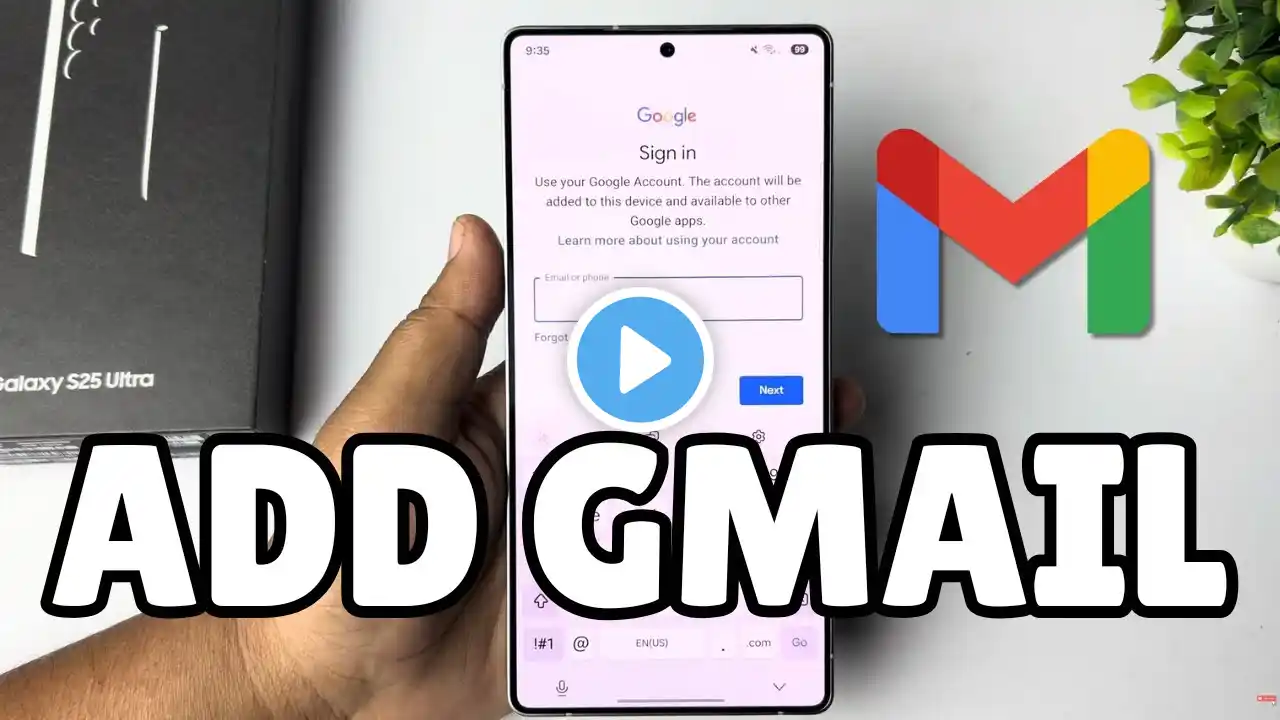
How To Add Google Account To Samsung Galaxy S25 / S25 Ultra
Learn how to add a Google account to your Samsung Galaxy S25 / S25 Ultra in just a few steps. This will help you add a Google account to the S25+ as well. Read: https://www.webproeducation.com/how-t... Samsung Galaxy S25: https://amzn.to/3Ej66IM Samsung Galaxy S25 Ultra: https://amzn.to/4heIcg9 How To Add Google Account To Samsung Galaxy S25: How To Add Gmail Account To Samsung Galaxy S25: How To Set Up Google Account To Samsung Galaxy S25: How To Set Up Gmail Account To Samsung Galaxy S25: How To Add Google Account To Samsung Galaxy S25 Ultra: How To Add Gmail Account To Samsung Galaxy S25 Ultra: How To Set Up Google Account To Samsung Galaxy S25 Ultra: How To Set Up Gmail Account To Samsung Galaxy S25 Ultra: How To Add Google Account To Samsung Galaxy S25+: Step 1: Begin by unlocking your Samsung Galaxy S25 and navigating to the home screen. You can tap on any Google service app and Sign In to add your Google account to your phone. However, the official way is via Settings. Step 2: Swipe down from the top of the screen to reveal the notification panel, and tap on the gear-shaped Settings icon. Alternatively, you can find the Settings app in your app drawer. Step 3: Within the Settings menu, scroll down and locate the "Accounts and Backup" section. Tap on it to access the account management settings and select "Manage Accounts". Step 4: Under Manage Accounts section, you will find an option to "Add Account." Select this option to initiate the process of adding a new account to your Samsung Galaxy S25. Step 5: From the list of available account types, select "Google". You will be prompted to enter your Google account credentials, so enter them. Step 6: Enter your email address and tap "Next." Provide the corresponding password for your Gmail account and also select "Next" to proceed. Step 7: Read and agree to Google's Terms of Service and Privacy Policy. Also, go through 2-step verification via another device signed in with your Google account. You'll also need to tap on "I Agree" to consent to the Google terms of service. Step 8: If you wish to enable automatic backup and restore for your apps, app data, and settings, you can set up this feature during the process. Simply select "Turn On Backup" or "Don't Turn On" if you're contrary to this. Step 9: Once you've configured your account settings, tap "Accept" to complete the setup process. Your Samsung Galaxy S25 is now linked with your Google (Gmail) account. After adding your account, your device will begin syncing your data, including contacts, calendars, and app data, with your Google account. Now that your Google account is added, you can easily access Gmail, Google Drive, Google Photos, and other Google services from your Galaxy S25. #s25 #s25ultra #galaxys25 #galaxys25ultra #samsunggalaxys25ultra #samsunggalaxys25 #samsungs25 #samsungs25ultra ----My Gear for YouTube videos---- Main Camera (iPhone 13 pro): https://amzn.to/3GZztve Tripod: https://amzn.to/35acqRa Cell Phone Tripod Adapter: https://amzn.to/3v3wFuI Lights: https://amzn.to/3vkoGK7 As full disclosure, I use affiliate links on this channel and purchasing through these links earns me a small commission. The price you pay will be the same! Website: https://www.webproeducation.org Facebook: / webproeducation.org Twitter: / webpro_e Instagram: / webproeducation