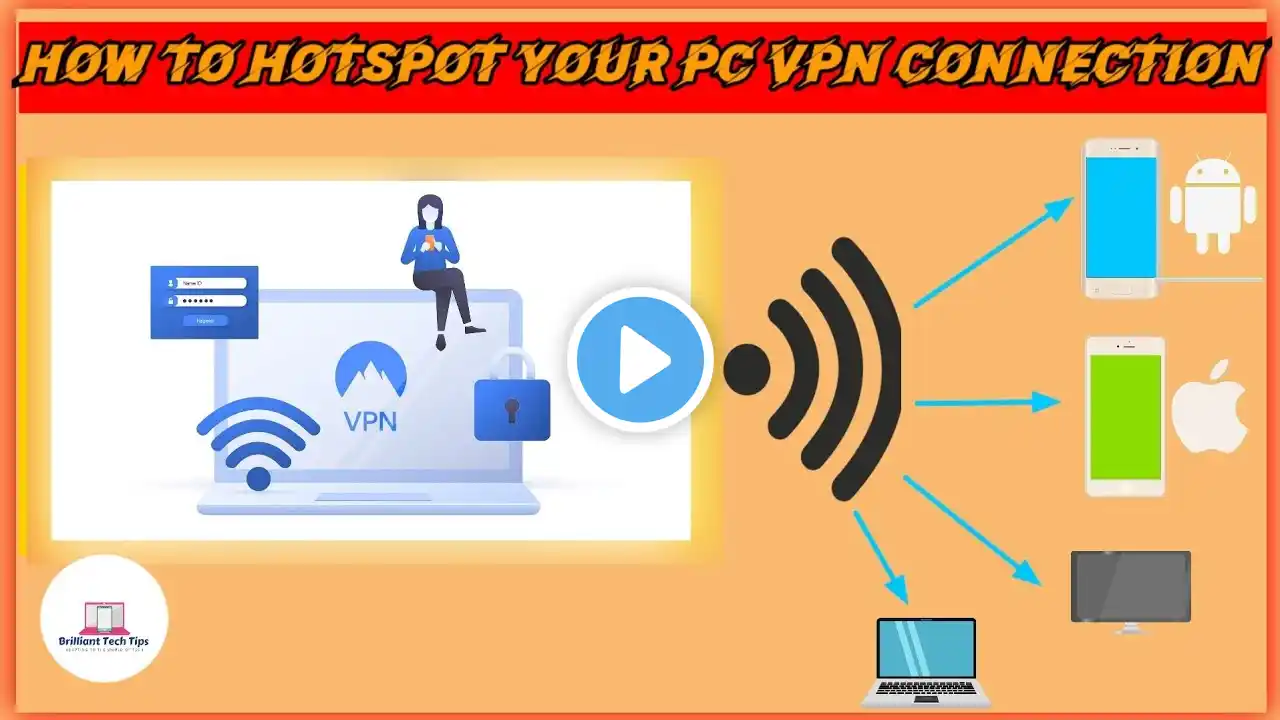
Share Netmod VPN via Hotspot – No Third-Party Apps Needed | Full Guide
Want to share your Netmod VPN connection with other devices without installing any extra apps? In this complete tutorial, I’ll walk you through a simple and effective method to share your VPN internet through your mobile hotspot using the built-in Proxy Tethering feature. This method allows you to enjoy secure and private browsing on multiple devices like Android, Windows PC, iPhone, and Mac — all connected through one VPN tunnel. In this video, you’ll discover how to properly enable Proxy Tethering inside Netmod settings and find the correct IP address and port from the app log. You’ll also learn how to configure manual proxy settings on a second Android device through advanced Wi-Fi options (important: avoid using the SOCKS address). For Windows users, I’ll demonstrate how to enable manual proxy configuration inside Network & Internet settings and enter the correct details provided by Netmod. Additionally, I’ll show you how to fix common mistakes, especially if you previously connected to Wi-Fi without setting up the proxy correctly. By the end of this tutorial, you’ll be able to share your VPN hotspot smoothly — no root, no third-party applications, and no complicated tools required. Netmod VPN, Share Netmod VPN, Netmod Hotspot Sharing, Proxy Tethering Setup, VPN Without Third Party App, Android Proxy Setup, Windows Manual Proxy, VPN Sharing Tutorial, Secure VPN Connection, WiFi Hotspot VPN, Netmod Configuration, Internet Sharing Guide #NetmodVPN, #VPNSharing, #ProxyTethering, #AndroidVPN, #WindowsProxy, #HotspotGuide, #SecureInternet, #TechTutorial