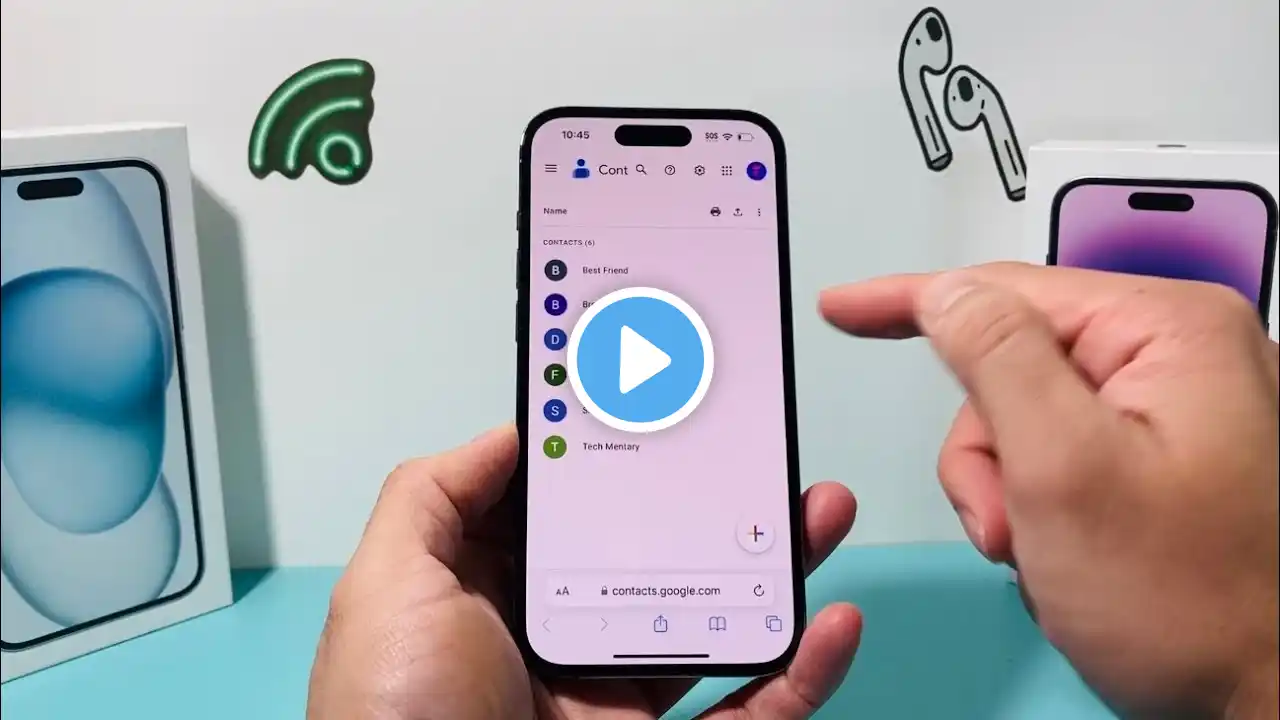
How to import contacts from gmail to iPhone (2026) | ANY iPhone
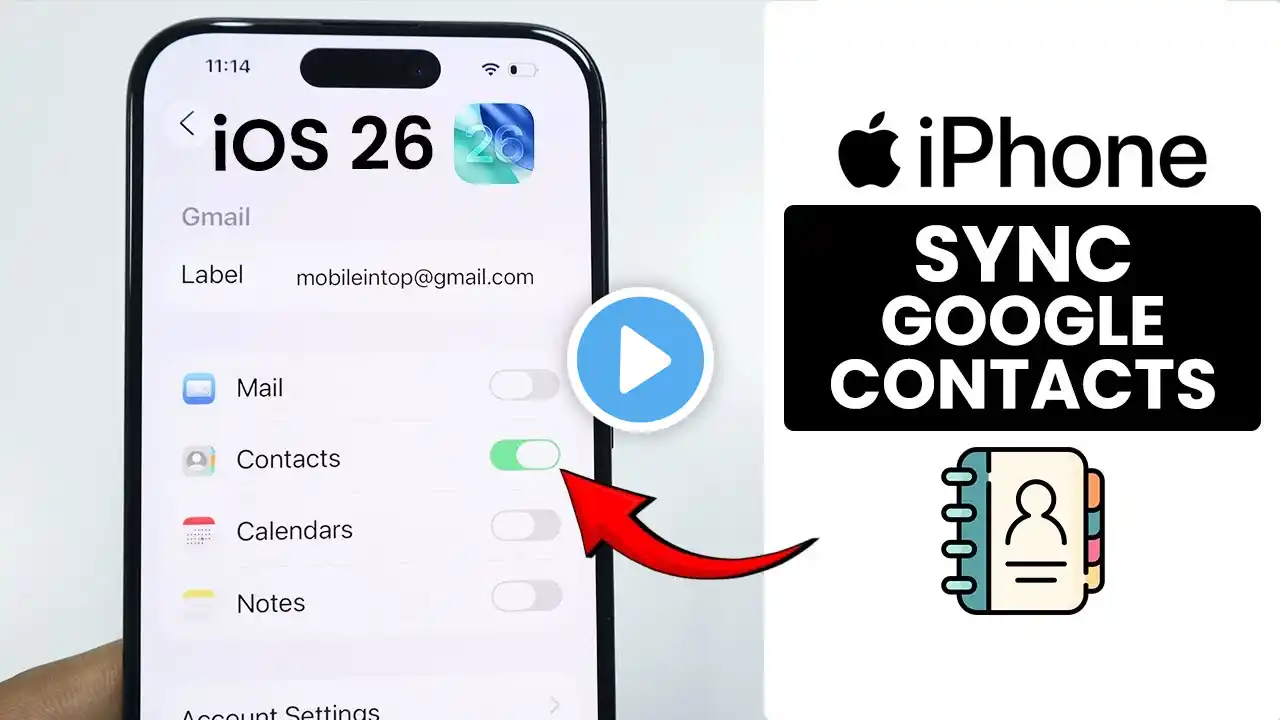
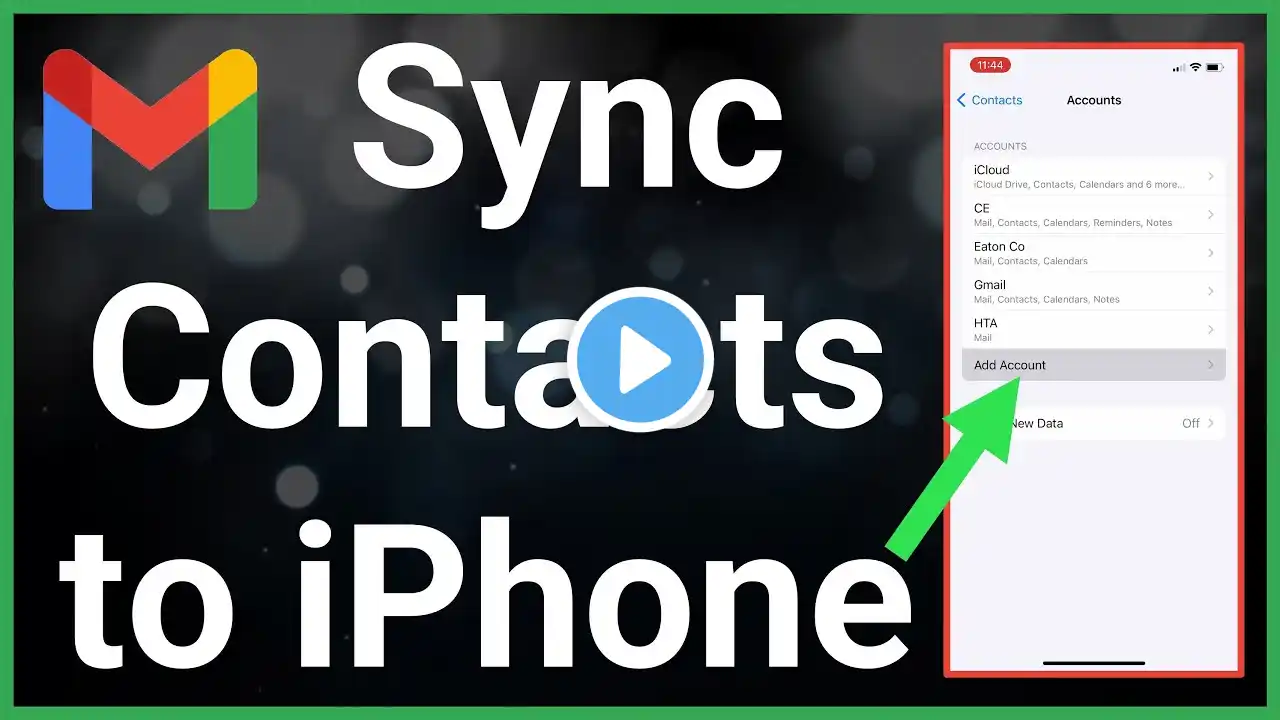
Here's how to import contacts from Gmail to iPhone: Auto-sync, move, copy, and transfer all Google Gmail contacts to the iPhone phone app. 00:00 intro 00:05 Steps to Save Gmail contacts 00:50 Access Gmail contacts Import all your Gmail contacts at once on iPhone. First, open the Settings app on iPhone, scroll down to Apps, and search for the Contacts app. Tap on Contacts Accounts, then tap on the Add Account option. You’ll see all contact services. Here, select Google for Gmail contacts. A browser window will open to securely verify your Gmail login details. Enter your Gmail email address and password, or use your passkey to sign in to your account. Complete the two-step verification to successfully log in to your Gmail account. Tap Continue, then turn on the Contacts toggle to sync with your iPhone Contacts app. Make sure to select the option to keep existing contacts on your iPhone. Tap Save to apply the changes. Now go back and open the Contacts app to see your synced Gmail contacts, or check the Phone app to view all imported contacts. Select All Contacts to view both iCloud and Gmail contacts in your Phone app. How to import contacts from gmail to iPhone, How to import contacts from gmail to iPhone 17 Pro, How to import contacts from gmail to iPhone 16 Pro, How to import contacts from gmail to iPhone 15 Pro, How to import contacts from gmail to iPhone 14 Pro, Transfer contacts from gmail to iPhone, move contacts from gmail to iPhone, Copy contacts from gmail to iPhone, sync contacts from gmail to iphone, Save contacts from gmail to iPhone, If you found this video helpful, give it a like! Need more help? Drop a comment below! Don’t forget to subscribe for regular updates! #iPhone, #iOS Subscribe on YouTube: https://www.youtube.com/freetechguide...